Watch a video overview of the Text to Speech tool
Overview
We are using the third-party service BeyondWords for text to speech generation. This service provides very “lifelike” audio and integrates well with the Sitecore CMS.
For now, we are not enabling this for all articles across the site(s). There are two main reasons for this:
- BeyondWords has a set limit of characters it can process each month. At our current subscription tier, we can process 1.5 million characters per month. That’s a lot, but far less than what we need to translate all the content on a single site, let alone all three.
- While the generated speech is quite good overall, occasionally some manual adjustments are required for mispronunciation – typically proper nouns.
Tutorial
We are using this page as the example: https://www.umnews.org/en/news/united-methodists-establish-urban-schools
To enable T2S on an article, scroll down to the Audio Translation Section and check the Translate Text To Speech checkbox.
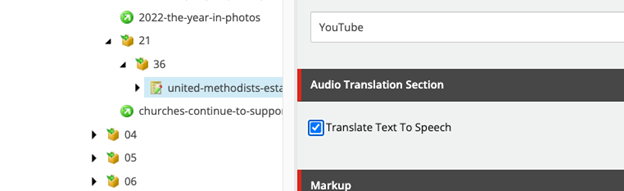
Once the page is published after the checkbox is enabled, the audio translation will be initiated.
The translation process takes several minutes, so the audio player will not appear immediately.
Once the translation is completed, the player will appear at the top of the body:

Clicking the play button on the left side will start the audio playback.

There are several controls on the audio player; from left to right:
- The Play/Pause button.
- The Playback speed button – clicking this will allow the user to step through the available speeds, from 0.5x to 3x.
- The left/right buttons will allow the user to skip forward and backward by sentences.
- The progress bar shows users the position of the audio playback.
- The download button allows users to download an MP3 file of the audio.
- The BeyondWords icon will take users to the BeyondWords website.
As you listen to this audio, you will note that some words are not pronounced correctly. For example, “Mutare” is being pronounced as “mew-tear.”
To correct these, you will need to sign into the BeyondWords backend.
NOTE: Correcting pronunciations will seem like a time-consuming process at first, and it is. However, as we build up the dictionary of pronunciation rules, it will be required less and less.
BeyondWords Backend
First, you will be sent an invite by a member of the web development team. Click on the Join button to set up your account.
Create a new password for the account and click Save Password
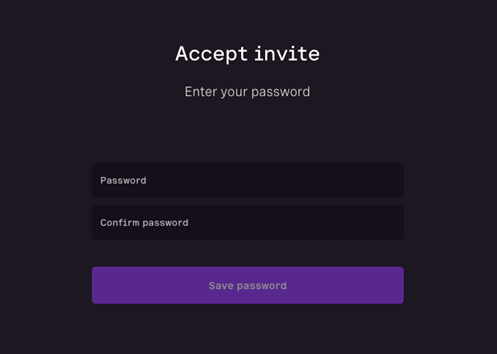
Once you are logged in, you will be taken to a list of projects you have access to:
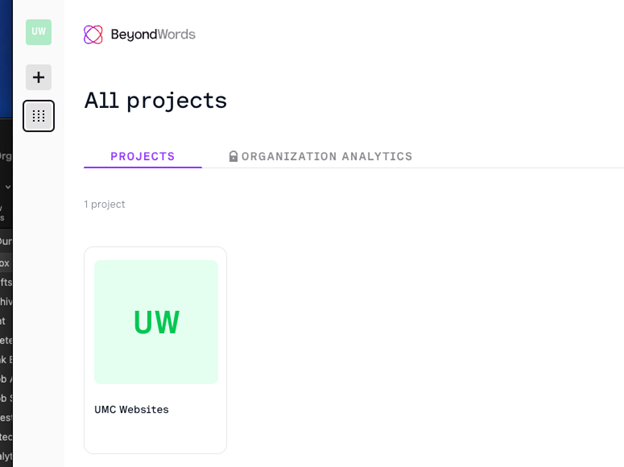
Currently there is only one, but we will eventually split this into one project per site.
To fix the audio, click on the UMC Websites project, which will take you to a list of the articles that have been translated.
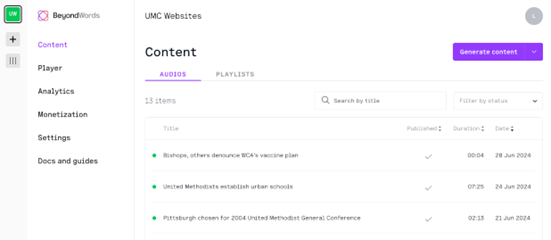
There are multiple approaches for correcting the audio, but the preferred way is to create a rule.
Creating a Rule
A rule will be used for all articles within the project or organization, and based on these rules, the translations will become more accurate as more are added.
Click on Settings on the left side, then RULES at the top of the page. You will be shown a list of the rules that have been created so far.
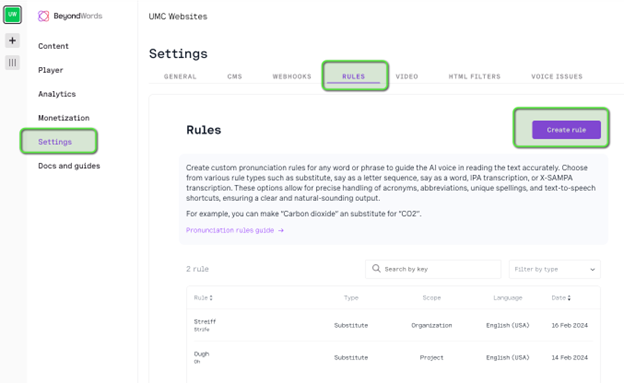
To create a new rule, click on the Create rule button:
There are several options here, but the two we are primarily concerned with are the Key and Value fields.
Enter the word you want to correct in the Key field, and the proper pronunciation in the Value field. A phonetic spelling should work, but occasionally you may need to use IPA pronunciation instead.
In this example, we can find the IPA pronunciation by searching for the term in Wiktionary: https://en.wiktionary.org/wiki/mutare. Using Bing to search for “Mutare IPA pronunciation” will work as well.
Copy the pronunciation given on the page, then select IPA Pronunciation as the Type, enter Mutare as the Key, and then paste the pronunciation you copied from Wiktionary in the Value field:
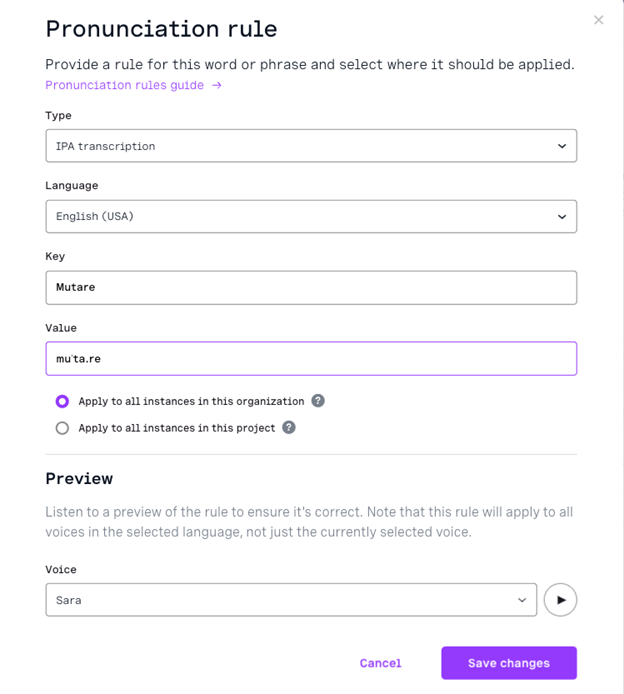
Click the play button in the lower right to preview the pronunciation. If you are happy with it, click the Save changes button.
Repeat this process for all words that need to be corrected.
Regenerate Content
NOTE: Regenerating content is an “expensive” process; we have a limited number of characters per month, so please make sure you have made all necessary changes to a page before regenerating it.
Once you are done adding rules, you will need to regenerate the audio for the article.
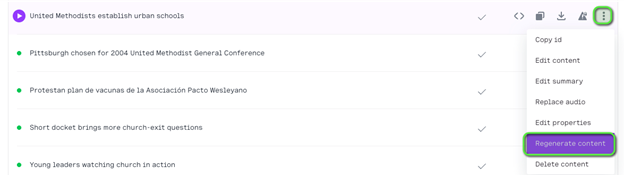
Click Content on the left side, which will return you to the list of articles. Hover over the article you wish to regenerate, click on the three dots at the far right, then click Regenerate content.
The green dot on the left side of the article title will turn yellow to indicate the regeneration is in progress. Once it is complete, it should turn green again and the audio will now reflect the change(s) made to the rules.