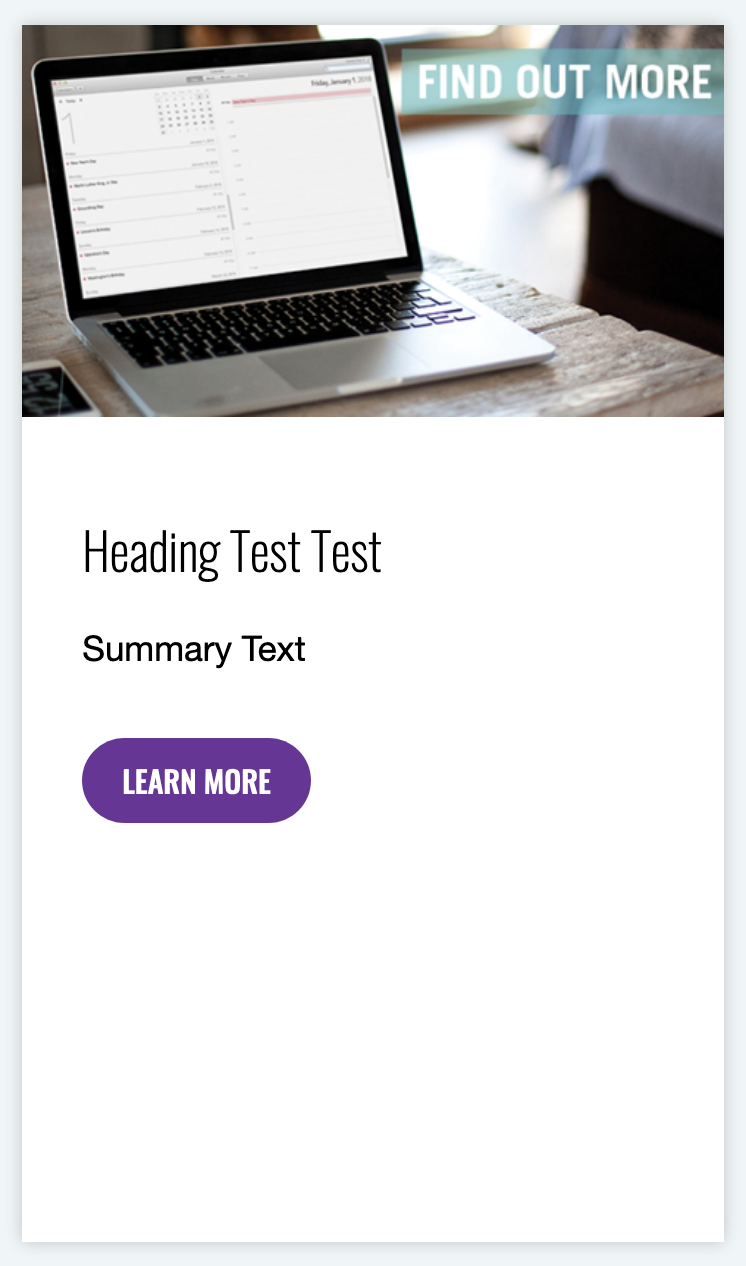
Component Thumbnail:
Implementation Instructions:
Purpose of the
rEsource CARD COMPONENT:
This component allows a freestyle display similar to the Promo Card component, without being tethered to any specific content or their preview fields. A custom and independent Image, Title, Summary Text, and Link can be displayed and configured without association to any specific reliance on other content.
To implement a
resource Card:
- Navigate to an existing Home, Campaign, Intermediate or Category Page
- Click the right-arrow to expand the Page Template directory
- Click the right-arrow to expand the “Page Content” folder
- IF A RESOURCE CARD DATA SET HAS ALREADY BEEN CREATED:
Select the “Resource Card” data set to configure the data set.- Enter a “Resource Card Title,” and “Resource Card Content.”
- Select a “Resource Card Image.”
- Select a “Resource Card Link” by clicking “Insert Link” and populating the specific internal or external link.
NOTE: Don’t forget to enter “Description Text” when selecting internal or external links; this defines the text within the linked button. - Save and Publish your changes.
- IF NO RESOURCE CARD DATA SET HAS BEEN CREATED:
Select the enclosing page in the Content Editor File Tree, and click “Experience Editor” in the “PUBLISH” tab. This will launch the page in a new Experience Editor window. - Once the Experience Editor loads the page, scroll to the area of the page where the Resource Card should appear.
- Click the “Add New Component” button in the upper left corner, next to the “Save” and “Search” icons. Several “Add Here” buttons will appear.
- Click the “Add Here” button closest to the location where the Resource Card should appear.
- Select “Promo Card Section” from the dialogue window. This component is a container intended to display a set of Promo Cards in an intentional, and designed manner.
- Once the Promo Card Section loads, click “Add New Component” again.
- Select “Resource Card.”
- Either select an existing Resource Card data set, or Click “Create Content” to create a new, empty Resource Card data set.
- Click the image icon within the Resource Card to define a new Resource Card Image.
- Click the Header Text to edit the text field directly.
- Click the Summary Text to edit the text field directly.
- Click the box directly beneath the Summary Text field to add a link.
NOTE: Don’t forget to enter “Description Text” when selecting internal or external links; this defines the text within the linked button.
- IF A RESOURCE CARD DATA SET HAS ALREADY BEEN CREATED:
- Click the “Save” icon (floppy disk) in the upper left corner.
- Select “publish related items” and “publish subitems,” and continue to “Publish.”