Component Thumbnail:
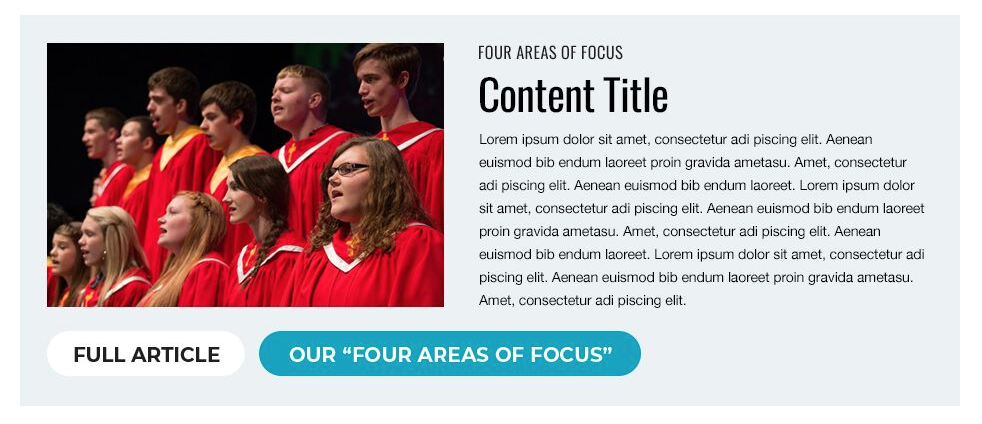
Implementation Instructions:
Purpose of the
TEASER COMPONENT:
This component is intended to highlight a specific and time-appropriate piece of content with component-level titling, introduction text, and link.
To implement a
TEASER:
- Navigate to the desired Home, Campaign, Intermediate or Category Page
NOTE: This component appears by default on the UMC home page, but can be implemented on other pages via Experience Editor.
- Click the right-arrow to expand the Page Template directory
- Click the right-arrow to expand the “Page Content” folder
- Select the “Teaser” component.
- Once the Content Editor loads the component, populate the following fields within the Content section:
- Teaser Title – Currently the top-most heading text.
- Teaser Content – This is a Rich Text Editor. Simply click “Show Editor”, or double-click the blank text field to launch the window. Enter your desired text, and click “Accept.”
- Teaser Image – This is a Media Library Explorer. Click “Browse” to search for your desired image, or choose one using the filters/facets to the left of the window. Choose your image, and click “Select.”
- Teaser Link – This link is not currently used by this component.
- Teaser Subtitle – The second, and larger, heading text in the component.
- Expand the “Teaser” component within the File Tree.
- Update Button text and links by selecting the components by clicking “Insert Link.”
- Select desired page to link to from the File Tree dialogue.
- Update the button text by updating the “Description” field that appears once a link is selected.
- Update Button text and links by selecting the components by clicking “Insert Link.”
- Click the “Save” icon (floppy disk) on each component in the upper left corner.
- Publish the enclosing page.
- If images, aliases or other “items” have been uploaded to a component, select “publish related items” and “publish subitems,” and continue to “Publish.”
- If all images, aliases, or other items were uploaded previous to updating the page components, simply select “publish subitems,” and continue to “Publish.”