Site Redirects LocationS
All three websites have their own redirect folder that holds all redirects (internal and external links). Here are the paths for all the sites:
Resourceumc.org
- ResourceUMC > Resource Redirects
UMC.org
- UMC > UMC Redirects
UMNews.org
- UMNS > Data > UMNS Redirects
Creating a friendly URL with non-English characters
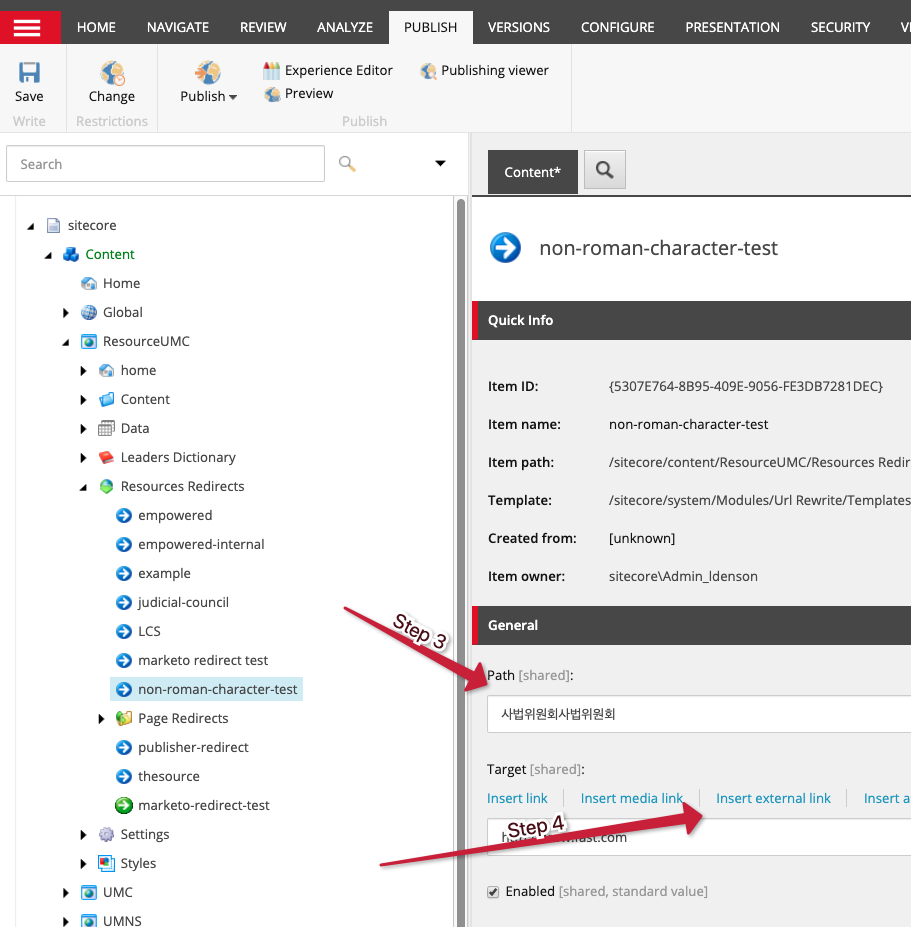
- Create a simple redirect, give it an English item name, e.g. korean-redirect.
- There are two fields under the General heading: Path and Target.
- In the Path field, put the friendly URL slug you want to use, e.g. 사법위원회
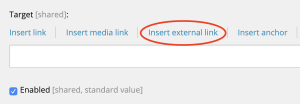
- In the Target field, use the “Insert external link” option to enter the full URL path that you want to direct the friendly to. (Eventually we will want to use the Insert Link option for internal links, but it’s not working at the moment)
- Go to the Review tab and click Fast Track
- Go to the Publish tab and publish
- Test the friendly URL: e.g. resourceumc.org/사법위원회
- If it returns a “Bad Request – Invalid URL” error, try copy/pasting the friendly URL slug into Notepad, then copy/paste it back into the path file (this will remove any background character encoding that may be gumming things up) and republish
Internal Redirect Links
When there is an article or page that has a not-so-friendly URL the use of an internal redirect would be beneficial so that if this redirect is shared across social media or marketing materials then this will help guide the user to the correct page or article.
- Go to the redirect path for the website you are working with. In this example we will use UMC.org. (Path: UMC > UMC Redirects).
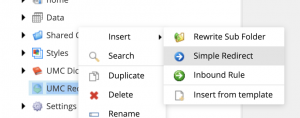
- Right-click on the UMC Redirects folder and select Insert > Simple Redirect
- A popup will appear to enter the friendly URL. Type in your friendly URL name in the field.
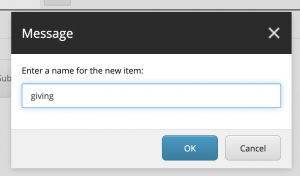
Important: When creating a user-friendly URL, keep it short and simple. If you are using more than one word, like I’m New, enter the name in the field as such: im-new. Replacing the space with a dash and keeping all characters lower case creates a more user-friendly link. The shorter the url the better.
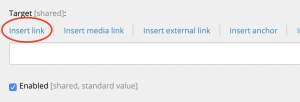
- Once the Content Editor opens the new item, click Insert external link under the ‘Target’ section in the ‘General’ area.
- In the popup dialog box, navigate to the piece of content that you are wanting to redirect the page to from the content tree.
- Once the link is added to the ‘Target’ field, navigate to the Review tab, and click on Fast Track in the Workflow section before publishing.
- Save and Publish > Publish Item
- Test the new friendly url to ensure the page is being redirected.
External Redirect Links
When there is an instance where a page needs to redirect to another URL outside of the current website (e.g. a UMC.org page needs to redirect to a ResourceUMC.org website) then we need to create an external link as the page lies outside of the current URL.
Important: External Links should have a target set to ‘_blank’ which opens the website in another tab. This is common practice since the user will be redirected to another website.
- Go to the redirect path for the website you are working with. In this example we will use UMC.org. (Path: UMC > UMC Redirects).
- Right-click on the UMC Redirects folder and select Insert > Simple Redirect
- A popup will appear to enter the friendly URL. Type in your friendly URL name in the field.
Important: When creating a user-friendly URL, keep it short and simple. If you are using more than one word, like I’m New, enter the name in the field as such: im-new. Replacing the space with a dash and keeping all characters lower case creates a more user-friendly link. The shorter the url the better.
- Once the Content Editor opens the new item, click Insert Link under the ‘Target’ section in the ‘General’ area.
- In the popup dialog box, type in the full external URL in the URL field. (e.g. https://www.facebook.com)
- In the same window, select New Browser in the dropdown menu in the Target window section.
- Click Insert
- Once the link is added to the ‘Target’ field, navigate to the Workflow section and change the state from Draft‘ to Approved before publishing.
- Save and Publish > Publish Item
- Test the new friendly url to ensure the page is being redirected.