Media Library/Uploading Images
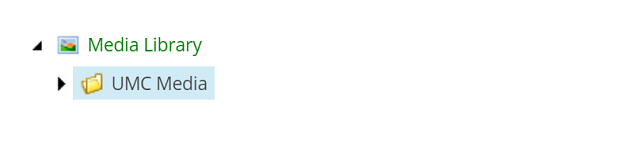
The media library can be accessed from the “Sitecore Launchpad” or from the File Tree within the Content Editor. To upload images, audio, documents, etc., click on Media Library icon in the File Tree, and make sure the UMC Media folder is highlighted (Image 1).
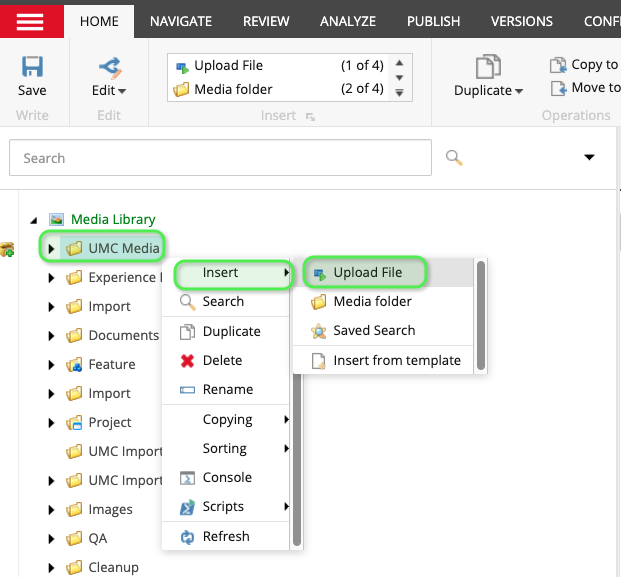
To upload media, right click on UMC Media folder then select Insert -> Upload File
You will then be prompted to select an image from your local computer. (Image 3).
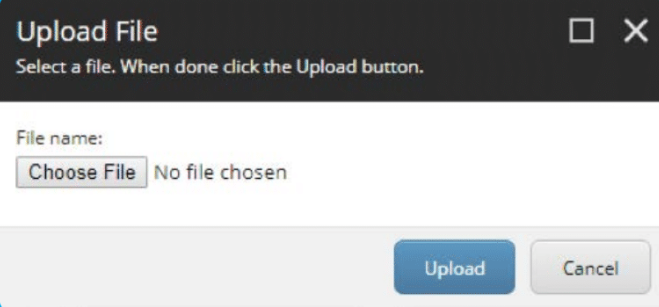
Select the file you wish to upload, then click the blue Upload button. You will then be taken to the Content tab for the file you uploaded.
There are many metadata fields that can be filled out. The more you complete, the easier it will be to find the content later on;
the only ones that are critical are:
- S3 Migration -> S3 Caption
- Images -> Alt
- Information -> Title (this is for the “tooltip” text when you hover over an image)
Once you have filled out the metadata, click on the Publish tab and follow the instructions in publishing.
Alternate Language Captions
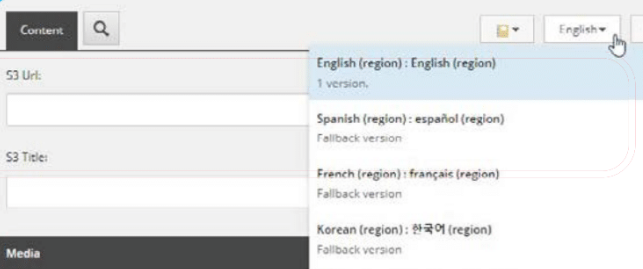
Before entering the caption, please make sure you have selected the corresponding language (Image 4); for example, if the image is to be added to the Korean version of the article, you must select Korean from the dropdown in the upper right.
Click on the “Add a new version” link in the yellow warning box at the top, and fill out the same fields and publish as before.
Repeat for any additional photos you wish to add.