1. Creating a Job
Jobs are created on the Find-A-Job page on UMC.org here.
- Click the “Submit a Job” button on the right-hand side of the Find-A-Job header.
- Complete all fields on the resulting form.
- Click “Submit a Job” button at the bottom of the form.
2. Generating “Jobs Awaiting Approval” Report
To view all unapproved job submissions, a “Jobs Awaiting Approval” report can be generated in Sitecore:
- Navigate to the Desktop
- Click the Sitecore start button in the lower left corner and selecting >
Reporting Tools > Powershell Scripts > UMC > Jobs For Review - Select the sorting criteria for the report from the resulting dialogue window
- Once the report generates, double-click the job awaiting approval; the job item will load in the Content Editor
3. Publishing an Approved Job Submission
Navigate to a newly submitted job from the “Jobs Awaiting Approval” form (Step 2, above), or from the Sitecore File Tree (Step 4, below).
- Verify the submitted data
- Navigate to the “Review” tab, and “Submit” to approve the submitted job
- Navigate to the “Publish” tab, and “Publish Item” to allow the job to appear within the Find-A-Church results.
- Click the “Jobs Awaiting Approval” button located to the right of the Sitecore start button (lower left corner) to return to the report, and repeat approvals as necessary.
4. Locating Jobs Within the Sitecore File Tree
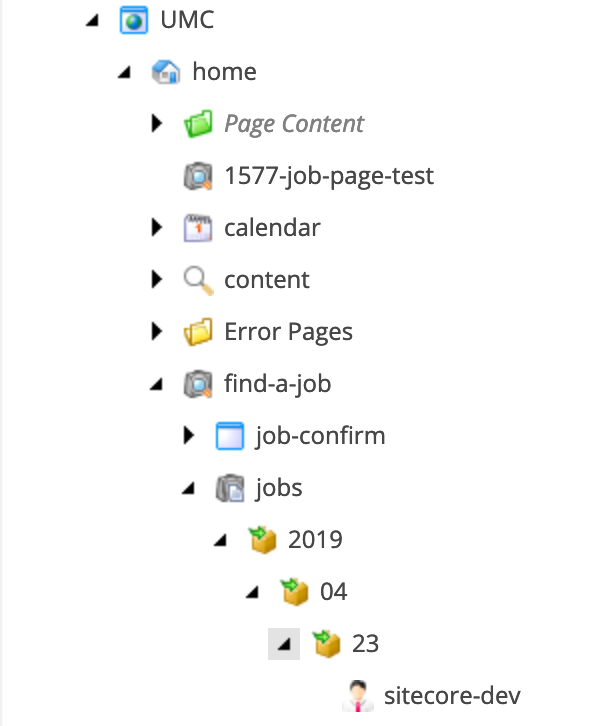
Upon submission, job items will be placed within the content tree in:
sitecore / Content / UMC / home / find-a-job / jobs