Component Thumbnail:
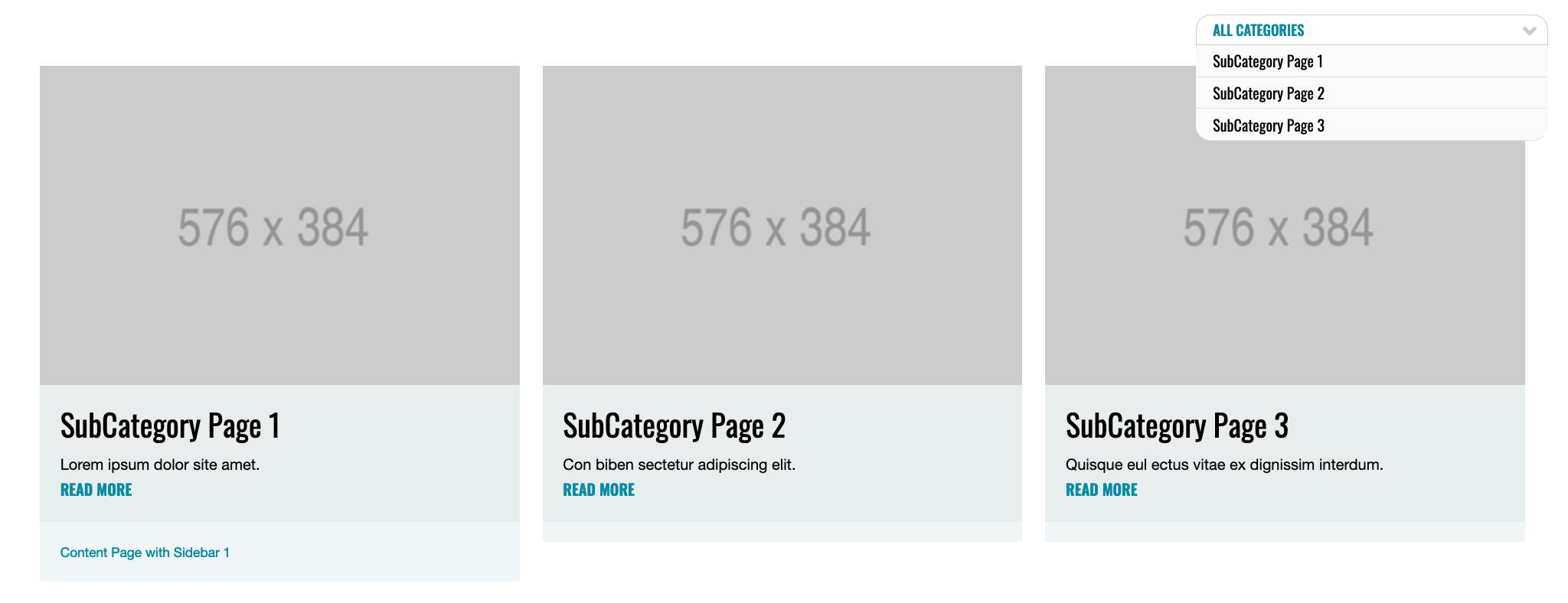
Implementation Instructions:
To implement a
Category Grid Component:
- Navigate to an existing Category Page
- Click the right-arrow to expand the Page Template directory
- Click the right-arrow to expand the “Page Content” folder
- Select the “Category Grid” component.
- Once the Content Editor loads the component, populate the following fields within the Data section:
- Root Item: Ideally, subcategories will appear inserted beneath the parent Category; likewise, all categories should display beneath the home page. Based on this, select the “Root Item” by choosing the parent (item directly above the desired subcategories) item enclosing the set of Categories desired to display within them.
NOTE: This selection will also define the dropdown items within the dropdown menu above the Category Grid. - Dropdown Text: This is the default text displaying within the dropdown menu before a selection is made (for example: All Categories, or Subcategories).
- Root Item: Ideally, subcategories will appear inserted beneath the parent Category; likewise, all categories should display beneath the home page. Based on this, select the “Root Item” by choosing the parent (item directly above the desired subcategories) item enclosing the set of Categories desired to display within them.
- Click the “Save” icon (floppy disk) in the upper left corner.
- Publish this item if you have no other components to edit.
- Select “publish related items”, but not “publish subitems,” and continue to “Publish.”
- Publish the enclosing page if you have other components to edit.
- Select “publish related items” and “publish subitems,” and continue to “Publish.”