Component Thumbnail:
Implementation Instructions:
Purpose of the
Content Grid & Content Tiles:
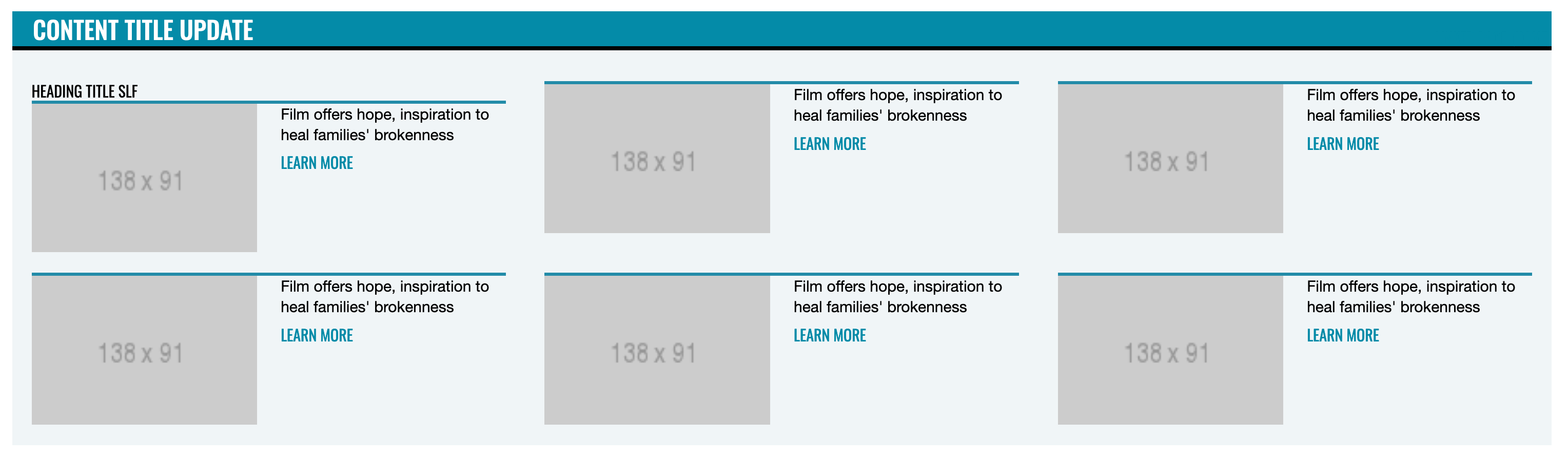
The Content Grid and Content Tile components allow curated and highly custom previews of specified content. Relational parameters are purely up to the author as opposed to relying on defined sorting mechanisms like categories or tags.
NOTE: The Content Grid is a section housing the display of collected Content Tiles. This heirarchy allows these disparate items to appear in a single, designed display.
To implement a
Content Grid:
- Navigate to an existing Campaign, Intermediate or Category Page
- Click the right-arrow to expand the Page Template directory
- Click the right-arrow to select the “Content Grid” component data set.
- Define the Content Grid Title, Link Label (text), and Grid Link (url).
- Save the Content Grid, and publish.
- Click on a “Content Tile” component data set.
- Search for the desired content
- Search Root can be used to filter search results to a specific site (UMC, ResourceUMC, or UMNS (UMNews)).
- Select desired content item.
- Define the “Heading” (Text to display above the specific Content Tile).
- Save the item.
- Configure as many Content Tiles as necessary.
- Select the encompassing page via the Content Editor File Tree.
- Save the page.
- Publish the page with “publish subitems” selected.
- Search for the desired content
- Click “Experience Editor” beneath the “Publish” tab.
- Experience Editor will launch in a new browser window.
- Scroll to the Content Grid component.
- If the desired Content Tiles are displaying, save and publish the page with “publish subitems” unselected (since these items were previously published in Content Editor).
- If the desired Content Tiles are not displaying, click the blue border around each individual Content Tile component, click the database with blue checkbox icon, and select “Change Associated Content.”
- Select the desired Content Tile.
- Save your updates by clicking the “floppy disc” icon in the upper left corner.
- Publish the page with “publish related items” and “publish subitems” selected.