Component Thumbnail:
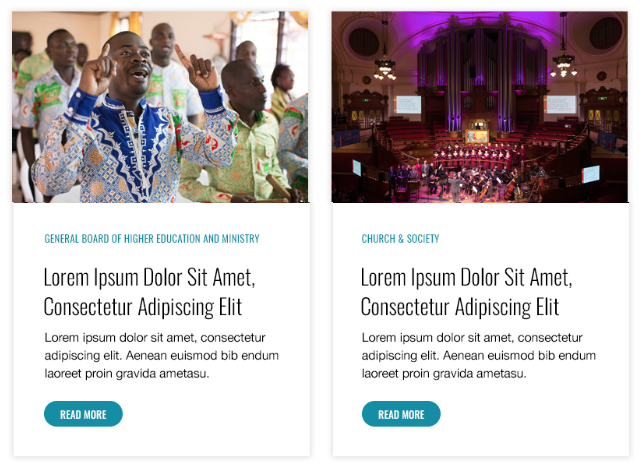
Implementation Instructions:
Purpose of the
PROMO CARD COMPONENT:
This component allows individual content or parent pages to be spotlighted in a single, designed summary. This component leverages the originating (selected) page’s Article Image, Title, Summary, and url to populate a simple and effective preview.
To implement a
Promo Card Component:
- Navigate to an existing Campaign, Intermediate or Category Page
- Click the right-arrow to expand the Page Template directory
- Click the right-arrow to expand the “Page Content” folder
- Select a “Promo Card” component.
- Once the Content Editor loads the component, populate the following fields within the Promo Card section:
- Search Root – This dropdown selector allows content creators to choose the site and section indexed by the following “Featured Page” search. In most cases, the selection will be the site a creator is currently working on (UMC Promo Card > Choose UMC directory). When necessary, though, the other sites (ResourceUMC.org and UMNews.org in this example) can also be selected and used to populate a Promo Card.
- Featured Content – After selecting the proper Search Root, use the Featured Content search field to locate a specific piece of content. Once selected, this article, External Link, or page will be used to populate the sections of this Promo Card.
- Link Title – The specific call-to-action can be altered to “Learn More,” “Discover,” or any other desired nomenclature.
- Click the “Save” icon (floppy disk) in the upper left corner.
- Publish this item if you have no other components to edit.
- Select “publish related items”, but not “publish subitems,” and continue to “Publish.”
- Publish the enclosing page if you have other components to edit.
- Select “publish related items” and “publish subitems,” and continue to “Publish.”