Component Thumbnail:
Implementation Instructions:
Purpose of the
TAG GRID SLIDER COMPONENT:
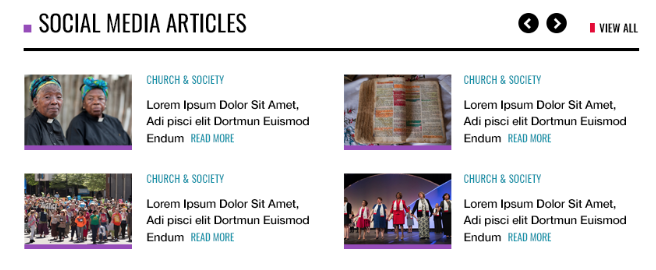
The Tag Grid Slider component displays content based on a selected category, tag, or prioritized (at the component level) content. This allows exposure of collected or related content at a higher, more intentional site level.
To implement a Tag Grid Slider Component:
- Navigate to an existing Campaign, Intermediate or Category Page
- Click the right-arrow to expand the Page Template directory
- Click the right-arrow to expand the “Page Content” folder
- Select the “Tag Grid Slider” component.
- Once the Content Editor loads the component, populate the following fields within the Listing Data section:
- Title – This is a Simple Text Editor. You cannot format this text beyond entering characters and punctuation. Enter the Tag Grid Title text as you would like it to appear above the listed articles within the slider.
- Button Title – This is the text used to link each tagged item within the slider.
- “View More” Button Link – This hyperlink appears above the Tag Grid Slider and should link to a relevant page thematically similar to the Tag Grid Slider’s content. Select a Sitecore page by clicking “insert link,” and choosing the page from the File Tree that appears. Change the linked text by entering text in the related “Description” field within the link selector window.
- Next, move on to the Search Settings section, and configure the following:
-
- Listing Record Start & Listing Record End – These controls determine the maximum number of filtered (by tag, category, and other selections below) results that appear. Keep in mind — choosing a massive number will effect page load times. 1 & 12 are standard entries for these fields.
- Date Range Start & Date Range End – Display only results within a desired chronological criteria. These fields are not mandatory.
- Search Root – By default, the subsequent fields will display content within the same directory as the enclosing “home” folder of the Tag Grid Slider. This setting allows content creators to isolate results to other directories within the Sitecore instance (ResourceUMC, UMNews, etc.).
- Priority Articles – These articles will appear regardless of other tag, category, or other setting within the Tag Grid. Priority Articles load into the Tag Grid Slider before other filtered results.
- Exclude Tags & Exclude Categories – These fields are used to prevent specific potentially cross-referenced content from appearing within the Tag Grid Slider. Want content tagged “Advent”, but not tagged “Advent” and “Administration?” These options allow configurations to accomplish these sort of use cases.
- Include Tags & Include Categories – Select the desired Category or Tag content you would like to display in this Tag Grid.
-
- Click the “Save” icon (floppy disk) in the upper left corner.
- Publish this item if you have no other components to edit.
- Select “publish related items”, but not “publish subitems,” and continue to “Publish.”
- Publish the enclosing page if you have other components to edit.
- Select “publish related items” and “publish subitems,” and continue to “Publish.”
“View All” Link Calibration